

Your New PC Migration Should Not Cost You a Full Day
One PowerShell script installs everything. Another restores every config. Fresh machine in under an hour.

Every New Laptop Costs You a Full Day
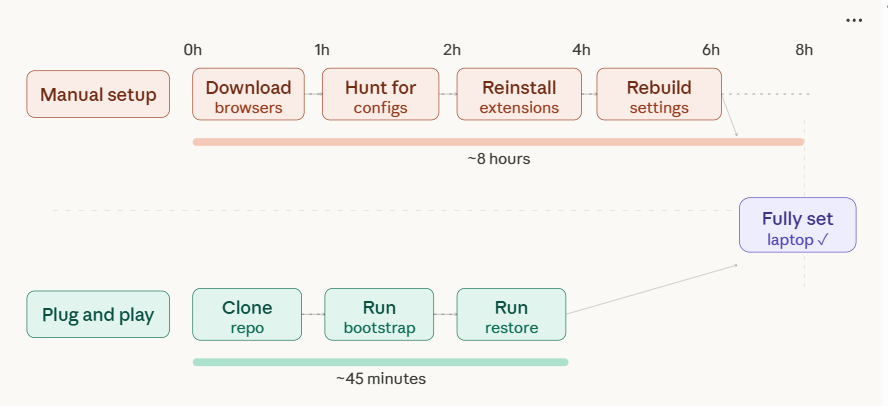
You get a new laptop. Exciting for about ten minutes. Then reality hits.
You spend the next eight hours downloading browsers, editors, terminals, media players, and CLI tools one by one. You hunt for config files scattered across AppData folders. You rebuild your VS Code settings from memory. You forget half your browser extensions. By midnight you’re still not back to where you started.
I got tired of this cycle. So I built a migration kit - a system that takes me from a fresh Windows install to my exact working environment in under an hour. No Microsoft Store. No manual downloads. No guesswork. One script installs everything. Another script restores every config, theme, and shortcut right where it belongs.
This is that system.
The Software Stack
Here is every tool that goes on my machine, grouped by what it does. This is the master list that feeds into the automated installer script later.
Productivity and Communication. Obsidian is the foundation - my second brain, my vault, my entire knowledge system. TickTick handles task management. For communication, it’s Slack for work, Discord for communities, and Telegram for everything in between. Flow Launcher gives me keyboard-driven quick access to files and apps without touching the mouse. QuillBot rounds it out for writing and paraphrasing.
Browsers and Research. Brave is my primary browser - privacy-focused, fast, and Chromium-compatible. For AI-assisted research, I keep Perplexity, Claude, and ChatGPT available as web apps. Proton VPN handles secure browsing when I need it.
Development and Terminal. VS Code is the primary editor. Sublime Text stays around for fast, lightweight file editing when I don’t need a full IDE. Docker handles containerization. Node.js and Python are the core runtimes. MongoDB and SQLite cover local database needs.
Media and Creativity. VLC plays everything. Audacity handles audio editing. MediaMonkey 5 manages my music library with metadata intact. OBS Studio records and streams. Upscayl does local AI-powered image upscaling. qBittorrent handles downloads.
System and Utilities. WizTree finds large files and frees up disk space fast. SyncThing is the backbone of the entire migration system - peer-to-peer file sync across machines with no cloud middleman. CCleaner cleans up system junk. PDF24 Creator handles offline PDF merging, splitting, and editing. Calibre manages my ebook library.
The Command Line Arsenal
The GUI apps are only half the picture. The real power lives in the terminal.
FFmpeg, yt-dlp, Gallery-DL, and ImageMagick are staples - they handle media conversion, video downloading, gallery scraping, and image processing respectively. But five more CLI tools round out the kit.
Rclone is the Swiss Army knife for cloud storage, syncing files to Google Drive, Dropbox, and dozens of other providers straight from the command line.
Pandoc converts between markup formats - Markdown to PDF, Markdown to Docx, whatever you need.
Zoxide replaces the
cdcommand with something smarter that learns your habits and lets you jump to any directory by typing a few letters.Ripgrep searches text across entire codebases and vaults at absurd speed.
Bat is a better
cat- syntax highlighting, line numbers, and Git integration built in.
Every one of these installs through a package manager. No hunting for download pages.
The Two-Tier Strategy
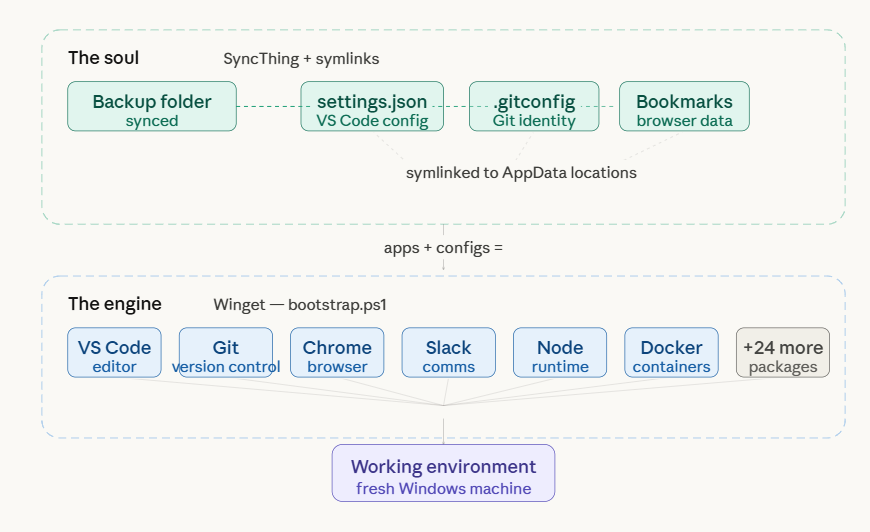
To make this truly plug-and-play, the system has two layers. The first is the engine - Winget installs the software binaries. The second is the soul - SyncThing plus symlinks restore your actual settings, themes, and databases. Installing the apps gets you 60% there. Restoring the configs gets you the remaining 40% that makes it feel like your machine.
The Automated Installer (bootstrap.ps1)
This script uses Winget to install the entire stack in one shot. Every app from the list above is mapped to its correct Winget package ID.
# Run as Admin check
if (!([Security.Principal.WindowsPrincipal][Security.Principal.WindowsIdentity]::GetCurrent()).IsInRole([Security.Principal.WindowsBuiltInRole]::Administrator)) {
    Write-Error "Run this script as Administrator!"; return
}

$apps = @(
    # Productivity
    "Obsidian.Obsidian", "TickTick.TickTick", "Slack.Slack", "Discord.Discord",
    "Telegram.TelegramDesktop", "Flow-Launcher.Flow-Launcher",

    # Browsers & VPN
    "Brave.Brave", "Proton.ProtonVPN",

    # Dev & Terminal
    "Microsoft.VisualStudioCode", "SublimeText.SublimeText.4", "Docker.DockerDesktop",
    "OpenJS.NodeJS", "Python.Python.3.12", "MongoDB.Server", "SQLite.SQLite",

    # Media & Creativity
    "VideoLAN.VLC", "Audacity.Audacity", "VentisMedia.MediaMonkey",
    "obsproject.obs-studio", "Upscayl.Upscayl", "qBittorrent.qBittorrent",

    # Utilities
    "AntibodySoftware.WizTree", "Syncthing.Syncthing", "Piriform.CCleaner",
    "PDF24.PDF24Creator", "kovidgoyal.calibre",

    # CLI Power Tools
    "Gyan.FFmpeg", "yt-dlp.yt-dlp", "mikf.gallery-dl", "ImageMagick.ImageMagick",
    "Rclone.Rclone", "JohnMacFarlane.Pandoc", "ajeetdsouza.zoxide",
    "BurntSushi.ripgrep.MSVC", "sharkdp.bat"
)

foreach ($app in $apps) {
    Write-Host "Installing $app..." -ForegroundColor Cyan
    winget install --id $app --silent --accept-source-agreements --accept-package-agreements
}
Run that as admin, walk away for 15 minutes, and come back to a fully loaded machine. Thirty-plus apps, zero clicks.
What Makes It Actually Plug and Play
Installing apps is the easy part. The hard part is making them feel like yours. That means restoring settings, themes, keybindings, and databases. SyncThing keeps a folder called C:\Backup\Config synced across all your machines. The table below maps exactly which paths need to be tracked for each tool.
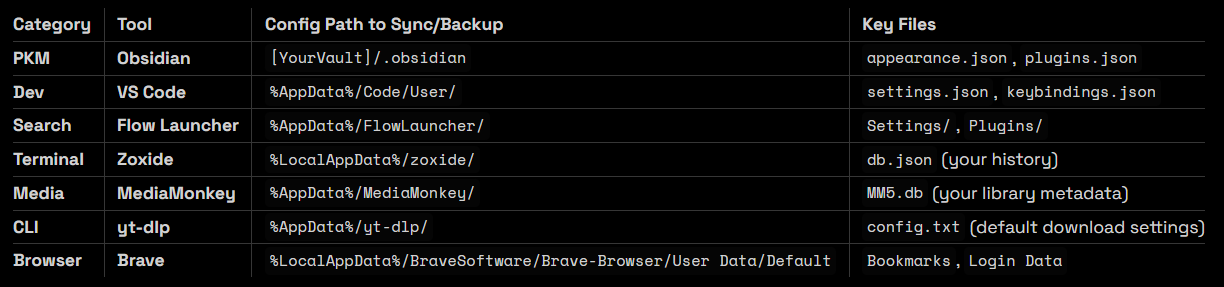
If it’s not on this list, it doesn’t need special treatment - Winget handled it. If it is on this list, the next script handles it automatically.
The Symlink Restore Script (restore_settings.ps1)
Once SyncThing has downloaded your C:\Backup\Config folder to the new machine, this script does the rest. It creates symbolic links that fool Windows into thinking the settings are in their normal locations, while they actually live in your synced folder.
# Define where your synced configs live
$syncFolder = "C:\Backup\Config"

# Function to create the link
function Set-Link($appPath, $backupPath) {
    if (Test-Path $appPath) { Remove-Item -Recurse -Force $appPath }
    New-Item -ItemType SymbolicLink -Path $appPath -Target $backupPath
}

# Apply Links
Write-Host "Restoring App Settings via Symlinks..." -ForegroundColor Green

# 1. VS Code Settings
Set-Link "$env:APPDATA\Code\User" "$syncFolder\vscode"

# 2. Flow Launcher (Everything: plugins, history, themes)
Set-Link "$env:APPDATA\FlowLauncher" "$syncFolder\FlowLauncher"

# 3. yt-dlp Global Config
Set-Link "$env:APPDATA\yt-dlp" "$syncFolder\yt-dlp"

# 4. Git Config (Crucial for your dev work)
Set-Link "$env:USERPROFILE\.gitconfig" "$syncFolder\git\.gitconfig"
After this runs, you open VS Code and your theme is there. Your keybindings are there. Flow Launcher has your plugins. Git knows who you are. It all just works.
Things That Need Special Treatment
Not everything plays nice with symlinks.
Obsidian stores its config inside the vault itself - the
.obsidianfolder holds your themes, plugins, and appearance settings. You don’t symlink Obsidian’s AppData. You just point the app at your synced vault on the new machine, and everything comes with it.Brave and other Chromium browsers encrypt some profile data in ways that are tied to the specific machine. Symlinks can break login sessions and saved passwords. The safer move is to use Brave Sync for extensions and bookmarks, and keep a manual export of your
Bookmarksfile in your backup folder as insurance.Python and Node.js don’t have meaningful config files to sync. What they need is their global packages. Add your
npm install -gandpip installcommands to the end ofbootstrap.ps1so they run as part of the same automated setup.
Taking It Further With a Dotfiles Repository
The SyncThing approach works. But a GitHub repository transforms your setup from a manual backup into a proper dotfiles system. You get version history for every config change, the ability to roll back mistakes, and a single git clone command to deploy your entire environment on any new machine.
The Repository Layout
Create a repository called dotfiles-windows with this layout:├── scripts/│ ├── bootstrap.ps1 # Installs all apps (Winget)│ └── restore.ps1 # Creates the symlinks├── configs/│ ├── vscode/│ │ ├── settings.json│ │ └── keybindings.json│ ├── flow-launcher/ # Folder for Flow settings│ ├── git/│ │ └── .gitconfig│ └── obsidian/ # Optional: Global snippets or CSS├── .gitignore # CRITICAL: Prevents pushing secrets└── README.md # Instructions for your future self
Everything text-based and non-sensitive goes here. Your scripts, your JSON configs, your Git settings. The repo becomes a single source of truth.
The Smart Gitignore
App data directories contain tokens, machine-specific paths, and database files you don’t want in version control. This .gitignore keeps the repo clean and safe
# Ignore local databases and logs
*.log
*.db
*.sqlite

# Ignore sensitive VS Code data
configs/vscode/backups/
configs/vscode/workspaceStorage/

# Ignore actual Obsidian Vaults (Keep those in Syncthing/Proton Drive)
# Only track global Obsidian CSS or templates here if desired.
vaults/

# Ignore sensitive Git credentials
.git-credentials
One-Command Deployment
With the repo set up, your entire migration on a new laptop becomes a single line:
git clone https://github.com/YourUsername/dotfiles-windows.git C:\dotfiles; & C:\dotfiles\scripts\bootstrap.ps1; & C:\dotfiles\scripts\restore.ps1
Clone the repo. Install all apps. Restore all configs. Done.
The restore.ps1 in the repo is smarter than the standalone version - it detects where it’s running from and resolves paths automatically:
$repoRoot = (Get-Item $PSScriptRoot).Parent.FullName
$configSource = "$repoRoot\configs"

function Set-Link($targetPath, $sourcePath) {
    if (Test-Path $targetPath) {
        Write-Host "Backing up existing config for $(Split-Path $targetPath -Leaf)..."
        Move-Item $targetPath "$targetPath.bak" -Force
    }
    # Ensure the parent directory exists
    $parentDir = Split-Path $targetPath -Parent
    if (!(Test-Path $parentDir)) { New-Item -ItemType Directory -Path $parentDir }

    New-Item -ItemType SymbolicLink -Path $targetPath -Target $sourcePath
    Write-Host "Linked: $targetPath" -ForegroundColor Gray
}

# -- Execute Links ---
Write-Host "Linking configurations from $configSource..." -ForegroundColor Cyan

# VS Code
Set-Link "$env:APPDATA\Code\User\settings.json" "$configSource\vscode\settings.json"

# Git
Set-Link "$env:USERPROFILE\.gitconfig" "$configSource\git\.gitconfig"

# Flow Launcher
Set-Link "$env:APPDATA\FlowLauncher\Settings" "$configSource\flow-launcher\Settings"

Write-Host "Migration Sync Complete!" -ForegroundColor Green
This version also backs up existing configs before overwriting them, so you never lose anything.
Keeping It Updated
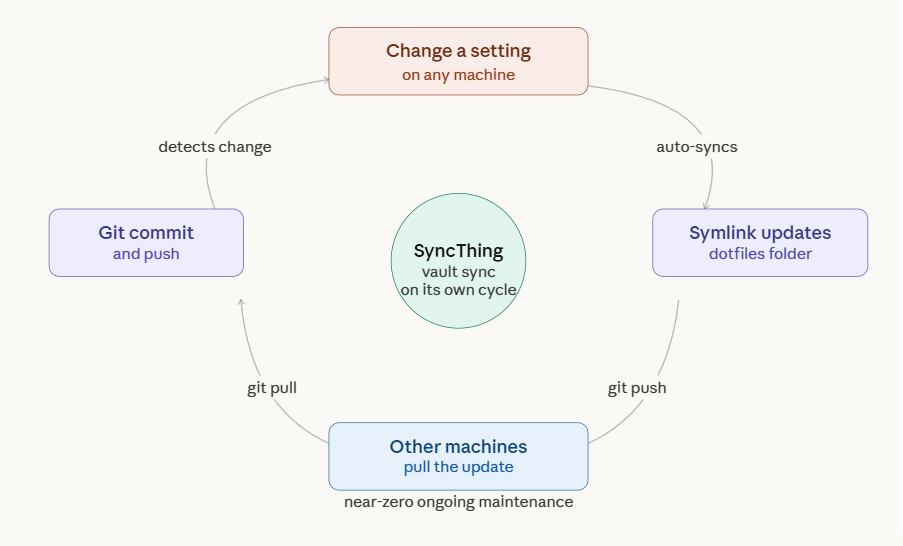
The symlinks make maintenance dead simple. When you change a setting - say you switch your VS Code theme - the file in C:\dotfiles\configs updates automatically because it’s the same file. All you do is commit and push:
cd C:\dotfiles
git add .
git commit -m "Updated VS Code theme"
git push
Your dotfiles stay current with zero extra effort. Every machine pulls the latest version on the next sync.
GitHub vs SyncThing - When to Use Which
Both tools have a role. The right choice depends on what you’re syncing.
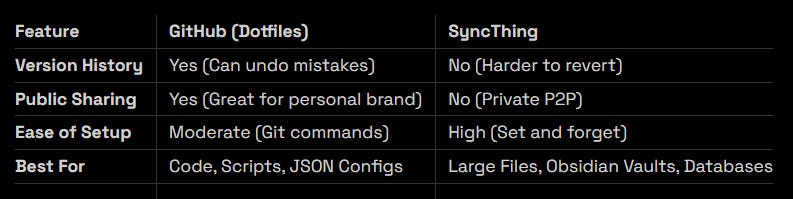
Use GitHub for the logic - scripts and small text-based configs where you want version control and rollback. Use SyncThing for the data - your Obsidian vault, images, media libraries, and local databases where you want seamless, set-and-forget synchronization. Running both gives you the best of each world.